
One calendar for your entire practice
A unified scheduling system that keeps every provider, room, and time slot organized in one place.
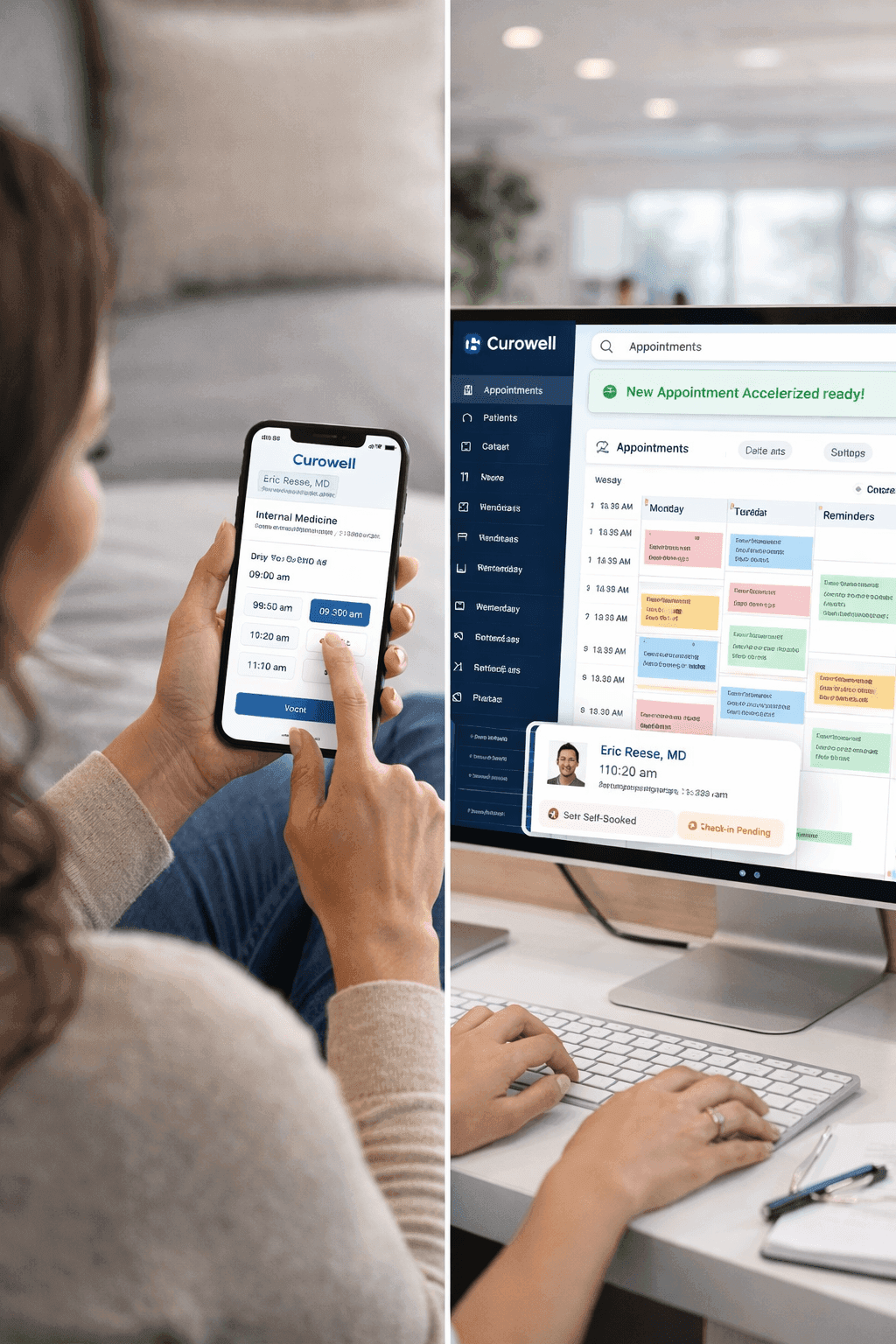
The Appointment Scheduler gives your practice a single, shared calendar that every team member can see and update in real time. Instead of toggling between provider-specific views or maintaining separate booking spreadsheets, your front desk works from one screen that shows availability across all providers, locations, and appointment types. Patients can also book directly through a self-service portal, which checks live availability so they never request a slot that is already taken. The result is fewer scheduling errors, less phone tag, and a front desk that spends more time with the patients standing in front of them.
How it works
What Appointment Scheduler does for your practice
Multi-Provider Calendar View
See every provider's schedule side by side on a single screen. Your front desk can compare availability across doctors, nurse practitioners, and specialists without switching tabs. Color-coded columns make it obvious who has openings and who is booked solid, so scheduling a patient with the right provider takes seconds instead of minutes.
Configurable Appointment Types
Define appointment types with specific durations, required rooms, and eligible providers. A new patient intake might block 45 minutes with Dr. Patel and require the exam room, while a quick blood pressure check needs 10 minutes with any available nurse. The system enforces these rules automatically, so no one accidentally books a 15-minute slot for a procedure that takes an hour.
Patient Self-Booking Portal
Patients can visit your booking page, choose their appointment type, pick a provider they prefer (or select 'first available'), and confirm a time that works for them. The portal only shows genuinely open slots, updated in real time. This means patients can book at 10pm on a Sunday without your staff being involved at all.
Recurring Appointment Management
For patients who need regular visits, such as weekly physical therapy or monthly check-ins, you can set up a recurring series with a single action. The system reserves the same day and time across multiple weeks, flags conflicts if a provider is out on a particular date, and lets you adjust individual occurrences without disrupting the rest of the series.
Real scenarios
See Appointment Scheduler in action
Front desk managing a busy morning
It is 8:15am on a Monday, the phones are ringing, and three patients just walked in for their 8:30 appointments. The front desk coordinator needs to reschedule a cancelled 9am visit, confirm that Dr. Kim's 10am patient is still coming, and find a slot for a patient calling about an urgent issue.
With the unified calendar, the coordinator sees all three providers' mornings at a glance, drags the cancelled slot to a waitlisted patient in two clicks, and finds a 9:45 opening for the urgent case without putting the caller on hold.
Patient booking online late at night
A patient realizes at 10pm that they need to schedule their annual physical. They do not want to call in the morning and wait on hold. They open the practice's booking page on their phone, select 'Annual Physical,' and browse available times for next week.
The patient books a Thursday 2pm slot with their preferred provider, receives an immediate confirmation email, and the appointment appears on the practice calendar before the office opens the next morning. No phone call needed.
Provider checking their schedule on mobile
Dr. Torres is finishing hospital rounds and wants to know what her afternoon looks like at the clinic. She needs to see how many patients she has, whether there are any new patient intakes that require extra prep, and if there is a gap where she can catch up on notes.
She opens the Curowell mobile view, sees her afternoon laid out with appointment types clearly labeled, notices a 30-minute gap at 3pm, and knows she can use that window for documentation without anyone interrupting her.
Common questions
Questions about Appointment Scheduler
Can patients book appointments without calling the office?
The self-booking portal is a web page you can link from your website, Google Business profile, or patient emails. Patients choose their appointment type, select a provider or pick 'first available,' and confirm a time. The portal only displays slots that are genuinely open, so there is no risk of double-booking. Your front desk sees the new appointment on the calendar immediately and can review or adjust it if needed.
How does the scheduler handle multiple locations or providers?
Each provider and location has its own availability settings, including working hours, lunch breaks, and days off. The calendar overlays all of them in a single view so your front desk can see the full picture. When a patient books, the system checks both provider availability and room availability at the chosen location. If Dr. Patel works at two offices on different days, the scheduler knows which location applies and only shows valid options.
What happens if two people try to book the same slot at the same time?
The system uses real-time availability checks. When a patient or staff member selects a time slot, it is temporarily held while they complete the booking. If someone else tries to select the same slot in that window, they are shown the next available option instead. This prevents double-booking whether the conflict is between two patients using the portal, a patient booking online while the front desk books by phone, or any other combination.